The humble computer screen monitor is far more than just a window to your digital world; it’s the very canvas upon which your entire computing experience unfolds. Whether you’re a hardcore gamer chasing every millisecond, a creative professional demanding pixel-perfect color accuracy, or simply someone who spends hours browsing and working, the quality and features of your computer screen monitor profoundly impact your daily life. Forget those days of murky, slow displays; today’s monitors are technological marvels, each designed with specific strengths to elevate your visual journey. Here at Sbinj.com, we believe that understanding your computer screen monitor is the first step toward optimizing your entire setup, making every pixel work harder and smarter for you.
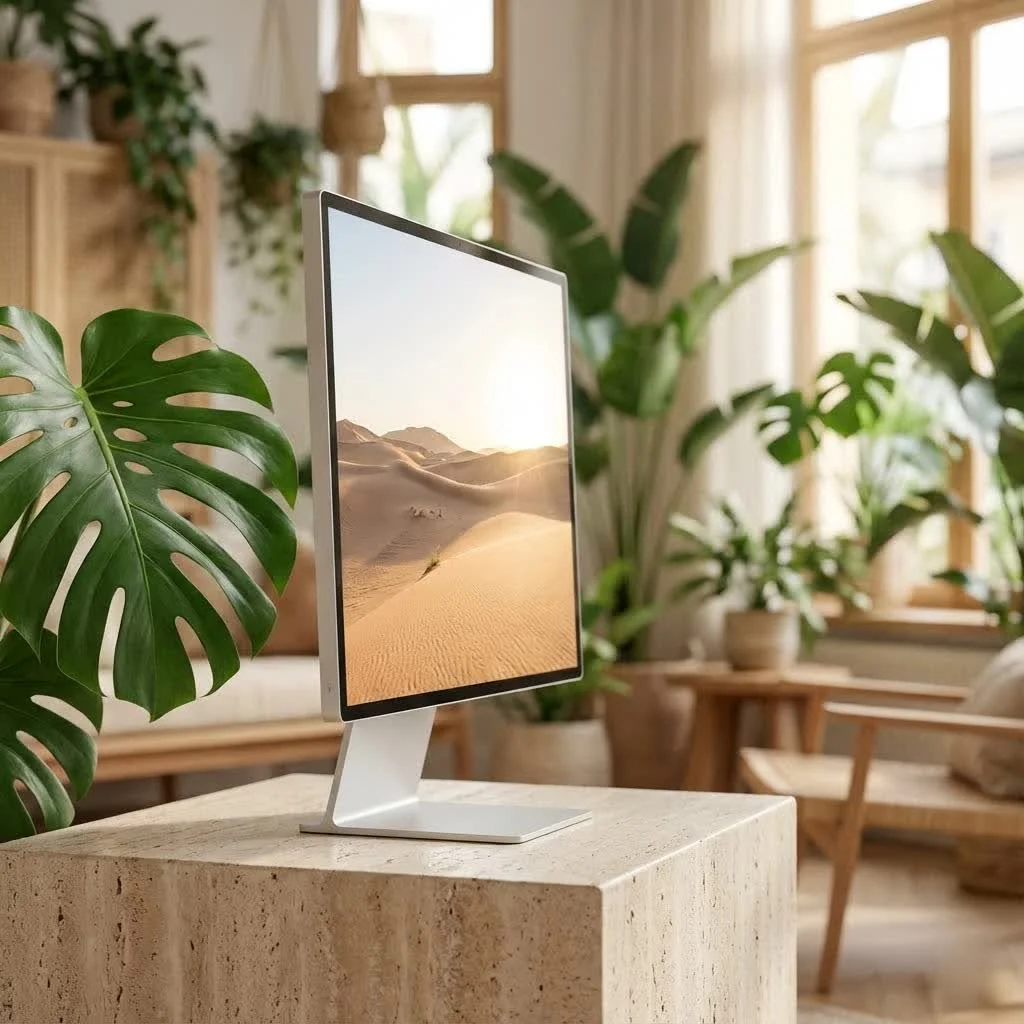
Decoding Monitor Technologies: Beyond the Buzzwords
Choosing the right computer screen monitor often feels like wading through an alphabet soup of acronyms: IPS, VA, TN, OLED, QD-OLED. But trust me, understanding these core technologies is key to unlocking the perfect display for your needs. Each panel type has its own distinct personality, offering a unique blend of strengths and compromises.
OLED and QD-OLED: The Visual Revolution
Imagine blacks so deep they seem to absorb light, and colors so vibrant they practically leap off the screen. That’s the magic of OLED (Organic Light-Emitting Diode) technology. Unlike traditional LCDs that rely on a backlight, each individual pixel in an OLED display emits its own light. This self-emissive nature allows for true black levels by simply turning pixels off, resulting in an infinite contrast ratio that no other display technology can match. QD-OLED (Quantum Dot OLED) takes this a step further, integrating quantum dots to enhance color purity and brightness, offering even more vivid hues and impressive HDR performance.
OLED and QD-OLED computer screen monitors also boast near-instantaneous response times, often as low as 0.03ms or 0.1ms, virtually eliminating motion blur and ghosting, which is a dream come true for competitive gamers. However, this cutting-edge technology comes at a higher price point, and there’s a historical concern about “burn-in” or “image retention” with static content over very long periods. While modern OLED panels have advanced significantly with sophisticated pixel-shifting and refresh technologies to mitigate this, it’s still a consideration, especially if your workflow involves static elements on screen for many hours each day.
IPS Panels: The All-Rounder
For years, IPS (In-Plane Switching) has been the gold standard for users who prioritize color accuracy and wide viewing angles. If you’ve ever tried to share your screen with someone sitting next to you, you’ll appreciate how IPS panels maintain consistent colors and brightness even when viewed from extreme angles. This makes them an excellent choice for graphic designers, photographers, video editors, and anyone doing creative work where color fidelity is paramount.
While early IPS panels were often criticized for slower response times compared to TN panels, modern IPS computer screen monitors have made significant strides. You can now find high-refresh-rate IPS displays with competitive response times, making them a fantastic all-around option for mixed-use scenarios, including gaming, productivity, and media consumption. The “IPS Black” variant further enhances contrast by achieving deeper blacks than standard IPS panels, bridging some of the gap with VA technology.
VA Panels: Contrast Kings for Immersive Experiences
|
Our Picks for the Best Computer Monitor in 2026
As an Amazon Associate I earn from qualifying purchases.
|
||
| Num | Product | Action |
|---|---|---|
| 1 | Philips New 27-inch Class Thin Full HD (1920 x 1080) 100Hz Monitor, VESA, HDMI x 1, VGA Port x1, Eye Care, 4 Year Advance Replacement Warranty, 271V8LB, Black |

|
| 2 | Philips 221V8LB 22 inch Class Thin Full HD (1920 x 1080) Monitor, 100Hz Refresh Rate, VESA, HDMI x1, VGA x1, LowBlue Mode, Adaptive Sync, 4 Year Advance Replacement Warranty |
|
| 3 | Samsung 27\\\" Essential S3 (S36GD) Series FHD 1800R Curved Computer Monitor, 100Hz, Game Mode, Advanced Eye Comfort, HDMI and D-sub Ports, LS27D366GANXZA, 2024 |
|
| 4 | Samsung 27\\\" S3 (S32GF) FHD High Resolution 120Hz Monitor with IPS Panel, Flicker Free, Eye Saver Mode, LS27F320GANXZA, 2025 |
|
| 5 | Samsung 32-Inch Flat Computer Monitor, 75Hz, Borderless Display, AMD FreeSync, Game Mode, Advanced Eye Care, HDMI and DisplayPort, LS32B304NWNXGO, 2024 |
|
| 6 | acer 27 Inch Monitor- KB272-27 Inch FHD IPS (1920 x 1080) Display, Up to 120Hz Refresh Rate, 99% sRGB, Tilt, Adaptive-Sync Support (FreeSync Compatible) 1ms (VRB), HDMI & VGA Ports |
|
| 7 | LG HDMI(2), DP, RS232C in/Out, RJ45 in,IR I |
|
| 8 | MAFNKOU Portable Monitor Touchscreen 14” 1920 * 1200P Gaming Display,Built-in Stand Speakers HDR IPS External Monitor for Laptop Portable,Travel Monitors for Laptop Mac PC Phone PS4/5 Xbox Switch |
|
| 9 | Samsung 24” (S40GD) Borderless Business Monitor with IPS Panel, 100Hz Refresh Rate, Eye Saver Mode, Ergonomic Design, Game Picture Mode, LS24D402GANXGO, 3 Yr Warranty |
|
| 10 | Amazon Basics 24 Inch (23.8 inch viewable) Monitor, FHD 1080P, Max 100Hz, VESA Compatible, Built-in Speakers, Black |
|
VA (Vertical Alignment) panels strike a compelling balance between IPS and TN, often praised for their high native contrast ratios. This means they can display deeper blacks and brighter whites than most IPS panels, leading to a more immersive viewing experience, especially in darker scenes of movies or games. Their deeper blacks contribute to an overall richer image quality that can really draw you into the content.
Historically, VA panels had slower response times and more noticeable ghosting than TN or even modern IPS, which could be an issue for fast-paced gaming. However, like other technologies, VA panels have evolved. Many contemporary VA computer screen monitors offer improved response times and higher refresh rates, making them a solid choice for general use, entertainment, and single-player gaming where deep contrast is valued. They are also commonly found in curved monitors, where their excellent viewing angles from the center are a good match for the wrap-around design.
TN Panels: Speed Demons for Competitive Gaming
If your primary goal is competitive gaming and every millisecond counts, then a TN (Twisted Nematic) computer screen monitor might still be your go-to. TN panels are renowned for their lightning-fast response times (often 1ms GtG or lower) and ability to achieve very high refresh rates at more affordable prices. This makes them ideal for esports enthusiasts who need to see quick movements with minimal blur and input lag.
The trade-off for this raw speed, however, is typically poorer color reproduction and narrower viewing angles compared to IPS or VA panels. Colors can appear less vibrant, and there might be noticeable color shifting if you view the screen from off-center angles. For pure competitive performance on a budget, TN panels remain a viable, albeit niche, choice.
Key Specifications That Truly Matter
Beyond the panel type, several critical specifications dictate a computer screen monitor’s performance and suitability for different tasks. Understanding these numbers is crucial for making an informed decision.
Resolution: Pixel Perfect or Practical?
Resolution refers to the number of pixels a display has, typically expressed as width x height (e.g., 1920×1080). More pixels mean sharper images and more screen real estate.
- 1080p (Full HD – 1920×1080): Still a common standard, especially for smaller monitors (24 inches or less) and budget gaming setups where frame rate is prioritized over extreme detail.
- 1440p (Quad HD/QHD – 2560×1440): Often considered the sweet spot for many users, offering a significant jump in sharpness and workspace over 1080p without being as demanding on your graphics card as 4K. It’s excellent for 27-inch monitors.
- 4K (Ultra HD/UHD – 3840×2160): Delivers incredible detail and clarity, ideal for larger computer screen monitors (27 inches and above), content creation, and cinematic gaming experiences. However, it requires a powerful graphics card to run games smoothly at native resolution.
Choosing the right resolution depends on your screen size and your PC’s capabilities. A 27-inch 1080p monitor might look pixelated, while a 32-inch 4K monitor offers stunning crispness.
Refresh Rate: The Smoothness Factor
Measured in Hertz (Hz), the refresh rate indicates how many times per second your computer screen monitor updates the image. A higher refresh rate translates to smoother motion and a more fluid visual experience.
- 60Hz: Standard for most office work, casual browsing, and media consumption. Perfectly adequate for non-gaming tasks.
- 120Hz / 144Hz: The entry point for serious gaming. You’ll notice significantly smoother gameplay and reduced motion blur compared to 60Hz, providing a competitive edge.
- 165Hz – 240Hz: For dedicated gamers and esports professionals, these refresh rates offer an even more fluid and responsive experience, crucial in fast-paced titles.
- 360Hz+ (and OLED 480Hz): The bleeding edge, typically found in high-end gaming computer screen monitors, offering extreme smoothness for professional esports.
“Think of refresh rate like frames in a movie,” explains Dr. Evelyn Reed, a leading display technology specialist at Pixel Perfect Labs. “The more frames per second, the smoother the motion appears. For fast action, a high refresh rate is indispensable.”
Response Time: Chasing Ghosting Away
Response time, measured in milliseconds (ms), refers to how quickly a pixel can change from one color to another, typically grey-to-grey (GtG). A low response time is critical for preventing motion blur and “ghosting” (streaks behind moving objects), especially in fast-moving games.
- 1ms (GtG): Excellent for competitive gaming, ensuring crisp motion with virtually no blur.
- 2-4ms: Very good for most gaming and everyday use, providing a great balance of performance and visual quality.
- 5ms+: Generally suitable for productivity and casual use, but might show noticeable ghosting in high-motion tasks or games.
Brightness, HDR, and Color Gamut: A Feast for Your Eyes
These specifications contribute to the overall visual fidelity and immersive quality of your computer screen monitor.
- Brightness (Nits/cd/m²): Measured in nits (or candelas per square meter), this indicates how bright your display can get. Higher brightness is crucial for visibility in brightly lit rooms and for HDR content.
- HDR (High Dynamic Range): HDR monitors offer a wider range of brightness and contrast, with more vibrant colors and greater detail in both highlights and shadows, providing a more lifelike image. For a noticeable HDR experience, look for monitors with a peak brightness of at least 500-600 nits, though OLEDs can achieve great HDR with lower peak brightness due to their perfect blacks.
- Color Gamut: This describes the range of colors a monitor can display. Common standards include sRGB (standard for web content) and DCI-P3 (a wider gamut, important for professional content creation and cinematic experiences). Look for percentages like “100% sRGB” or “90%+ DCI-P3” for accurate color representation.
Optimizing Your Computer Screen Monitor for Peak Performance
Once you’ve chosen your ideal computer screen monitor, the journey doesn’t end there! Properly configuring its settings can unlock its full potential and significantly enhance your experience.
Setting Resolution and Refresh Rate
The first and most crucial step is ensuring your computer screen monitor is running at its native (recommended) resolution and its highest possible refresh rate.
- For Windows users: Right-click on your desktop and select “Display settings.”
- Resolution: Scroll down to “Display resolution” and ensure the option marked “(Recommended)” is selected. Using a non-native resolution can result in blurry text and images.
- Refresh Rate: Click on “Advanced display settings,” then locate the “Refresh rate” drop-down menu and select the highest available Hz value. Don’t leave performance on the table! Many monitors default to 60Hz out of the box, even if they’re capable of much higher.
Fine-Tuning Color and Image Settings
Achieving accurate and pleasing colors involves a bit of tweaking. Most computer screen monitors offer on-screen display (OSD) menus with settings like:
- Gamma: Affects the brightness curve, influencing the contrast between dark and bright areas. A gamma of 2.2 is usually standard; adjust to your preference for a brighter or darker overall image.
- Black Level: Controls how the monitor handles blacks. Set too high, blacks look grey; set too low, dark details can be lost. Use test patterns to find the sweet spot where all near-black shades are visible.
- Color Temperature: Determines the “warmth” or “coolness” of the image (reddish or bluish tint). A setting around 6500K is considered neutral.
- Picture Modes: Many monitors come with presets like “Standard,” “Vivid,” “sRGB,” or “Gaming.” While “Vivid” might offer punchier colors, “sRGB” mode is often more color-accurate for content creation. Experiment, but for accuracy, avoiding overly aggressive “image enhancers” or “dynamic contrast” settings is generally recommended as they can distort the image.
For advanced calibration, you can use Windows’ built-in “Calibrate Display Color” tool or invest in a hardware colorimeter for professional-level accuracy.
Embracing Adaptive Sync: G-Sync and FreeSync
If you’re a gamer, adaptive sync technologies like NVIDIA G-Sync and AMD FreeSync are game-changers. These features synchronize your computer screen monitor’s refresh rate with your graphics card’s frame rate, eliminating screen tearing and reducing stuttering without significantly increasing input lag.
- Enable in Monitor OSD: First, activate FreeSync or G-Sync compatibility in your monitor’s on-screen display menu.
- Enable in GPU Control Panel: Then, enable it in your graphics card’s control panel (NVIDIA Control Panel for G-Sync/G-Sync Compatible, AMD Radeon Settings for FreeSync). This ensures smooth, tear-free gameplay, making your fast-paced action feel even more responsive.
Expert Advice: Making Your Monitor Choice Last
Selecting a computer screen monitor isn’t just about the initial purchase; it’s about ensuring it serves your needs for years to come.
- Consider Your Primary Use Case: Be honest about what you’ll use your computer screen monitor for most. Gaming? Prioritize refresh rate and response time. Creative work? Focus on color accuracy and resolution. General use? A balanced IPS or VA panel is often ideal.
- Don’t Forget Connectivity: Ensure your new computer screen monitor has the right ports to connect to your PC. DisplayPort is generally preferred for high refresh rates and resolutions, while HDMI is also common. USB-C with power delivery is increasingly popular for laptops, offering a single-cable solution for video, data, and charging.
- Ergonomics Matter: A good computer screen monitor should offer height, tilt, swivel, and sometimes pivot adjustments. Your posture and eye comfort are paramount for long sessions.
Frequently Asked Questions About Computer Screen Monitors
Q1: What’s the ideal size for a computer screen monitor?
The ideal size for a computer screen monitor largely depends on your viewing distance, desk space, and resolution. For 1080p, 24 inches is often a good maximum. For 1440p, 27 inches is the sweet spot, while 4K truly shines on 32-inch or larger displays. Ultrawide monitors (34 inches and up) offer an immersive experience for productivity and gaming.
Q2: Is a higher refresh rate always better?
While a higher refresh rate generally provides a smoother experience, it’s most noticeable in fast-paced activities like gaming. For purely productivity or casual browsing, a 60Hz or 75Hz computer screen monitor is perfectly adequate. However, once you experience 120Hz or 144Hz, even desktop navigation feels significantly more fluid.
Q3: What is “burn-in” on an OLED monitor?
Burn-in (or permanent image retention) is a phenomenon where static images displayed for extended periods can leave a faint, permanent outline on the screen. While this was a more prominent concern with older OLED technology, modern OLED computer screen monitors incorporate sophisticated features like pixel shifting, logo dimming, and panel refresh cycles to significantly mitigate the risk of burn-in for typical usage.
Q4: How important is response time for casual users?
For casual users who mostly browse, watch videos, or do office work, a response time of 5ms or even 8ms is usually fine. You likely won’t notice motion blur or ghosting in these scenarios. Response time becomes critical for competitive gamers where every millisecond can impact performance.
Q5: Can I use two different computer screen monitors together?
Absolutely! Many users benefit from a dual-monitor setup for increased productivity. Windows and macOS make it easy to configure multiple displays, even if they have different resolutions or sizes. Just ensure your graphics card has enough output ports (HDMI, DisplayPort) to connect both monitors.
Q6: How do I clean my computer screen monitor?
Always use a soft, microfiber cloth. For stubborn smudges, slightly dampen the cloth with distilled water or a dedicated monitor cleaning solution (never use harsh chemicals like window cleaner). Gently wipe the screen in one direction, avoiding excessive pressure. Always power off and unplug the monitor before cleaning.
Q7: Should I worry about eye strain with modern monitors?
Modern computer screen monitors have features designed to reduce eye strain, such as flicker-free backlights and low blue light modes. However, prolonged screen time can still cause fatigue. To minimize strain, ensure proper monitor distance and height, take regular breaks, and optimize brightness to match your ambient lighting.
The Final Pixel
Choosing and optimizing your computer screen monitor is a journey into the heart of your digital experience. From understanding the nuanced differences between OLED and IPS panels to fine-tuning your refresh rate and color settings, every decision contributes to a more vibrant, responsive, and enjoyable interaction with your PC. By following this guide, you’re not just buying a display; you’re investing in a superior visual foundation for all your computing endeavors. We at Sbinj.com are here to ensure you make the most informed choices, transforming your digital canvas into a true masterpiece. Dive in, explore the possibilities, and experience your world through a truly exceptional computer screen monitor!
Get our weekly buyer guide
Practical specs, not advice. Unsubscribe anytime.