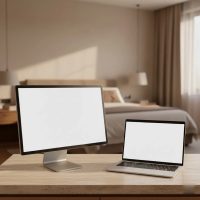
In today’s fast-paced digital world, your laptop is often the command center for work, creativity, and entertainment. But what if you could supercharge that experience, expanding your digital horizons and boosting your efficiency with a simple yet powerful addition? Enter the computer monitor for laptop setup—a game-changer that transforms your portable powerhouse into a versatile desktop workstation. As seasoned monitor experts at Sbinj.com, we’re here to guide you through unlocking the full potential of your laptop with the perfect external display.
Why Your Laptop Needs a Companion: The Undeniable Benefits of an External Monitor
Connecting an external computer monitor to your laptop isn’t just about getting a bigger picture; it’s about fundamentally enhancing your workflow, comfort, and overall digital experience.
Boost Your Productivity
Working on a single laptop screen often feels like navigating a crowded desk—you’re constantly minimizing, maximizing, and switching between applications. An external monitor provides that much-needed extra real estate. Studies have consistently shown that using multiple monitors can significantly increase productivity, with some research indicating gains of 20-50%. This isn’t just a number; it’s a tangible difference you’ll feel in your daily tasks.
Unleash Your Workspace: Multitasking Made Easy
Imagine having your primary document open on one screen, research materials or communication apps on another, and perhaps a video tutorial or presentation preview on a third. This multi-screen setup, powered by your computer monitor for laptop, makes multitasking effortless. You can keep all your critical information visible simultaneously, reducing the cognitive load of constantly hunting for the right window and helping you maintain focus.
Ergonomics and Eye Comfort: A Healthier Setup
Staring down at a laptop screen for hours can lead to neck strain, poor posture, and eye fatigue. An external monitor, especially one with adjustable height, tilt, and swivel, allows you to position your screen at an ergonomic eye level. This simple adjustment can drastically reduce physical discomfort and promote healthier working habits. A larger screen also means less straining to see details, which is inherently better for your eyes.
Superior Visuals: Beyond Your Laptop Screen
While modern laptops boast impressive displays, an external computer monitor often offers superior picture quality. You can find monitors with higher resolutions (like 4K), better color accuracy, wider color gamuts (ideal for creative work), and larger sizes that immerse you more deeply in your content, whether it’s a detailed spreadsheet or a cinematic movie.
“Integrating a quality external monitor with your laptop isn’t just an upgrade; it’s an investment in your well-being and efficiency. The ergonomic benefits alone can prevent long-term discomfort, while the expanded visual workspace empowers you to achieve more with less mental effort.” – Dr. Evelyn Reed, Digital Ergonomics Specialist.
Finding Your Perfect Match: Key Considerations for a Laptop Monitor
Choosing the ideal computer monitor for laptop use involves balancing your specific needs with available technologies and features.
Connectivity: The Digital Bridge
|
Our Picks for the Best Computer Monitor in 2026
As an Amazon Associate I earn from qualifying purchases.
|
||
| Num | Product | Action |
|---|---|---|
| 1 | Samsung 27\\\" Essential S3 (S36GD) Series FHD 1800R Curved Computer Monitor, 100Hz, Game Mode, Advanced Eye Comfort, HDMI and D-sub Ports, LS27D366GANXZA, 2024 |

|
| 2 | MAFNKOU Portable Monitor Touchscreen 14” 1920 * 1200P Gaming Display,Built-in Stand Speakers HDR IPS External Monitor for Laptop Portable,Travel Monitors for Laptop Mac PC Phone PS4/5 Xbox Switch |
|
| 3 | Samsung 27\\\" S3 (S32GF) FHD High Resolution 120Hz Monitor with IPS Panel, Flicker Free, Eye Saver Mode, LS27F320GANXZA, 2025 |
|
| 4 | Amazon Basics 24 Inch (23.8 inch viewable) Monitor, FHD 1080P, Max 100Hz, VESA Compatible, Built-in Speakers, Black |
|
| 5 | Philips 221V8LB 22 inch Class Thin Full HD (1920 x 1080) Monitor, 100Hz Refresh Rate, VESA, HDMI x1, VGA x1, LowBlue Mode, Adaptive Sync, 4 Year Advance Replacement Warranty |
|
| 6 | Samsung 24” (S40GD) Borderless Business Monitor with IPS Panel, 100Hz Refresh Rate, Eye Saver Mode, Ergonomic Design, Game Picture Mode, LS24D402GANXGO, 3 Yr Warranty |
|
| 7 | Samsung 32-Inch Flat Computer Monitor, 75Hz, Borderless Display, AMD FreeSync, Game Mode, Advanced Eye Care, HDMI and DisplayPort, LS32B304NWNXGO, 2024 |
|
| 8 | acer 27 Inch Monitor- KB272-27 Inch FHD IPS (1920 x 1080) Display, Up to 120Hz Refresh Rate, 99% sRGB, Tilt, Adaptive-Sync Support (FreeSync Compatible) 1ms (VRB), HDMI & VGA Ports |
|
| 9 | LG HDMI(2), DP, RS232C in/Out, RJ45 in,IR I |
|
| 10 | Philips New 27-inch Class Thin Full HD (1920 x 1080) 100Hz Monitor, VESA, HDMI x 1, VGA Port x1, Eye Care, 4 Year Advance Replacement Warranty, 271V8LB, Black |
|
How your laptop connects to a monitor is crucial. Modern laptops typically offer:
- HDMI: A common and versatile port for audio and video, found on nearly all monitors and laptops.
- DisplayPort: Often preferred for higher refresh rates and resolutions, particularly in gaming monitors.
- USB-C (Thunderbolt 3/4): The most flexible option, supporting video, data, and even power delivery through a single cable. Many modern productivity monitors feature USB-C with up to 100W power delivery, allowing you to charge your laptop while connected.
If your laptop lacks a specific port, don’t worry! Adapters (e.g., USB-C to HDMI) and docking stations can bridge the gap, even allowing you to connect multiple displays.
Resolution and Screen Size: Clarity Meets Immersion
The resolution of your computer monitor dictates its sharpness.
- 1080p (Full HD): Good for general use, especially on smaller monitors (24 inches or less) or if your laptop’s graphics card isn’t robust.
- 1440p (QHD/2K): A sweet spot for many, offering sharper images than 1080p without being as demanding on your GPU as 4K. Excellent for 27-inch monitors.
- 4K (UHD): Provides incredible detail, perfect for creative work, large spreadsheets, or simply enjoying ultra-crisp visuals. Popular for 27-inch and larger displays.
Screen size is a personal preference, but 24-inch to 32-inch monitors are popular choices, with ultrawide monitors offering an immersive, single-panel multi-tasking experience.
Panel Technology: IPS, VA, OLED
The panel type significantly impacts image quality:
- IPS (In-Plane Switching): Known for excellent color accuracy and wide viewing angles, making them ideal for creative professionals and general use.
- VA (Vertical Alignment): Offers superior contrast ratios and deeper blacks than IPS, great for media consumption, but sometimes has slower response times.
- OLED (Organic Light Emitting Diode): The premium choice, delivering perfect blacks, infinite contrast, vibrant colors, and lightning-fast response times. Ideal for high-end gaming and professional content creation, though typically more expensive.
Refresh Rate and Response Time: Smoothness for Every Task
These specs are crucial, especially for gaming or fast-paced video editing.
- Refresh Rate (Hz): How many times the image on the screen is updated per second. A higher refresh rate (e.g., 120Hz, 144Hz, 240Hz) results in smoother motion, which is a boon for gaming and even general desktop scrolling.
- Response Time (ms): How quickly pixels can change color. Lower numbers (e.g., 1ms, 0.03ms) reduce motion blur, giving competitive gamers an edge.
For most productivity tasks, a 60Hz or 75Hz monitor with a 5ms response time is perfectly adequate.
Ergonomics and Stand Features
Look for monitors with versatile stands that allow for height adjustment, tilt, swivel, and pivot (for portrait mode). This flexibility is vital for creating an ergonomic setup and optimizing your view for different tasks. VESA mount compatibility is also a plus if you plan to use an aftermarket monitor arm.
Special Features: KVM, HDR, Built-in USB Hubs
Modern computer monitor for laptop setups can come with a host of additional features:
- KVM Switch: Allows you to control multiple computers (e.g., your laptop and a desktop PC) with a single keyboard and mouse, switching between them seamlessly.
- HDR (High Dynamic Range): Enhances contrast and color vibrancy for a more lifelike image, especially noticeable in compatible content.
- Built-in USB Hubs: Provide extra USB ports on the monitor itself, useful for connecting peripherals like external hard drives, webcams, or charging your phone, simplifying cable management.
Monitors for Every Mission: Top Picks and Use Cases
The best computer monitor for laptop use depends heavily on your primary activities.
For the Productivity Powerhouse
If your day involves spreadsheets, documents, coding, or virtual meetings, focus on:
- Size & Resolution: 27-inch or 32-inch 4K monitors offer ample screen real estate and crisp text.
- Connectivity: USB-C with power delivery is a must for a clean, single-cable setup.
- Ergonomics: A highly adjustable stand is key for long working hours.
- Examples: Dell S2725QC, BenQ PD2725U, HP Series 7 Pro 34-inch WQHD.
For the Avid Gamer
When connecting your gaming laptop to an external display, prioritize performance:
- Refresh Rate: 144Hz or higher for fluid gameplay.
- Response Time: 1ms or less to minimize ghosting.
- Resolution: 1440p (QHD) is often preferred for balancing visual quality and high frame rates, though 4K gaming monitors are becoming more prevalent.
- Panel Type: OLED/QD-OLED for stunning visuals and near-instant response.
- Adaptive Sync: G-Sync or FreeSync for tear-free gaming.
- Examples: ASUS ROG Swift OLED PG27UCDM, Samsung Odyssey OLED G6/G9.
For Creative Professionals
Color accuracy and detail are paramount for designers, photographers, and video editors:
- Color Accuracy: Look for wide color gamut support (e.g., 99% Adobe RGB, 95% DCI-P3) and factory calibration.
- Resolution: 4K or even 5K for intricate details.
- Panel Type: High-quality IPS or OLED.
- Examples: Asus ProArt Display PA279CRV, BenQ SW321C PhotoVue.
For the On-the-Go Professional: Portable Monitors
Portable monitors are a fantastic way to extend your laptop screen even when traveling. They are lightweight, USB-C powered, and typically range from 13 to 17 inches. While they won’t offer the same high-end specs as desktop monitors, they provide invaluable extra screen space in a compact form factor.
Seamless Setup: Connecting Your Computer Monitor to Your Laptop
Connecting your new computer monitor for laptop use is typically a straightforward process.
What You’ll Need
- Your laptop
- Your new external monitor
- The appropriate video cable (HDMI, DisplayPort, or USB-C, matching your laptop and monitor ports)
- Power cables for both devices
- (Optional) An adapter or docking station if needed
Step-by-Step Connection Guide
- Power Down: Turn off your laptop and monitor. This isn’t always strictly necessary with modern devices, but it’s good practice.
- Connect the Cable: Plug one end of your video cable into your laptop’s video output port (HDMI, DisplayPort, or USB-C) and the other end into the corresponding input port on your monitor. If using an adapter or docking station, connect it to your laptop first.
- Power Up: Turn on your monitor, then power on your laptop.
- Automatic Detection: In most cases, your laptop’s operating system (Windows or macOS) will automatically detect the new display.
- Manual Detection (if needed): If the monitor doesn’t display an image, press the
InputorSourcebutton on your monitor to ensure it’s set to the correct input (e.g., HDMI 1, DisplayPort).
Configuring Your Display Settings
Once connected, you’ll want to configure how your laptop uses the external display.
- For Windows:
- Right-click on an empty area of your desktop and select
Display settings, or go toStart > Settings > System > Display. - Under
Multiple displays, choose one of the following options:- Duplicate these displays: Shows the same content on both screens. Ideal for presentations.
- Extend these displays: Uses the external monitor as an extension of your laptop screen, providing a larger combined workspace. Perfect for multitasking.
- Show only on 1/2: Uses only your laptop screen or only the external monitor.
- Adjust resolution and orientation as desired, then click
ApplyorKeep changes.
- Right-click on an empty area of your desktop and select
- For macOS:
- Go to
System Settings > Displays. - You can arrange your displays, set resolutions, and choose between mirroring (duplicating) or extending your desktop.
- Go to
Troubleshooting Common Issues
If your computer monitor for laptop isn’t working as expected:
- Check all cables: Ensure they are securely plugged in at both ends and not damaged.
- Verify power: Make sure both the laptop and monitor are powered on.
- Correct input source: Confirm the monitor’s input source is correctly selected.
- Restart devices: A simple restart can often resolve detection issues.
- Update drivers: Ensure your laptop’s graphics drivers are up to date.
FAQ: Your Burning Questions Answered
Can I use any monitor with my laptop?
Generally, yes, most monitors are compatible with laptops as long as you have the correct ports and cables. Modern laptops typically support HDMI, DisplayPort, or USB-C. You might need an adapter for older port types like VGA or DVI.
What’s the best cable to connect my laptop to a monitor?
The “best” cable depends on your needs. For basic connectivity, HDMI is universal. For higher resolutions, refresh rates, or multi-monitor setups, DisplayPort is often superior. USB-C is the most versatile, supporting video, data, and power over a single cable, making it ideal for a clean workspace.
Does using an external monitor drain my laptop battery faster?
Yes, using an external monitor, especially one that doesn’t provide power back to your laptop via USB-C, will consume more power and drain your laptop’s battery faster. For extended use, it’s always best to keep your laptop plugged in.
How many external monitors can I connect to my laptop?
This depends on your laptop’s graphics card capabilities and available ports. Many modern laptops can support two external monitors, especially with a docking station or a monitor that supports daisy-chaining via DisplayPort or Thunderbolt.
Is a portable monitor worth it?
A portable monitor is definitely worth it if you frequently work on the go and need extra screen real estate. They are lightweight, convenient, and plug-and-play, greatly enhancing productivity outside of a traditional office setup.
Conclusion
Integrating a quality computer monitor for laptop use is one of the most impactful upgrades you can make to your digital life. Whether you’re a professional seeking enhanced productivity, a gamer craving immersive visuals, or a creative mind demanding pixel-perfect detail, the right external display can revolutionize your experience. By understanding the key considerations for connectivity, resolution, panel technology, and ergonomics, you can confidently select a monitor that perfectly complements your laptop and your unique workflow. So go ahead, expand your view, elevate your comfort, and discover a new level of efficiency with the perfect computer monitor for laptop setup. Your eyes, neck, and productivity will thank you!
Get our weekly buyer guide
Practical specs, not advice. Unsubscribe anytime.