In the vast world of computing, the Computer Monitor stands as your window into digital reality. It’s the primary interface through which you interact with your work, your games, and your creative projects. With countless options on the market, understanding the nuances of display technology can feel like navigating a maze. But fear not, as your seasoned experts at Sbinj.com are here to cut through the jargon and equip you with the knowledge to make an informed decision, ensuring your next computer monitor perfectly matches your needs.
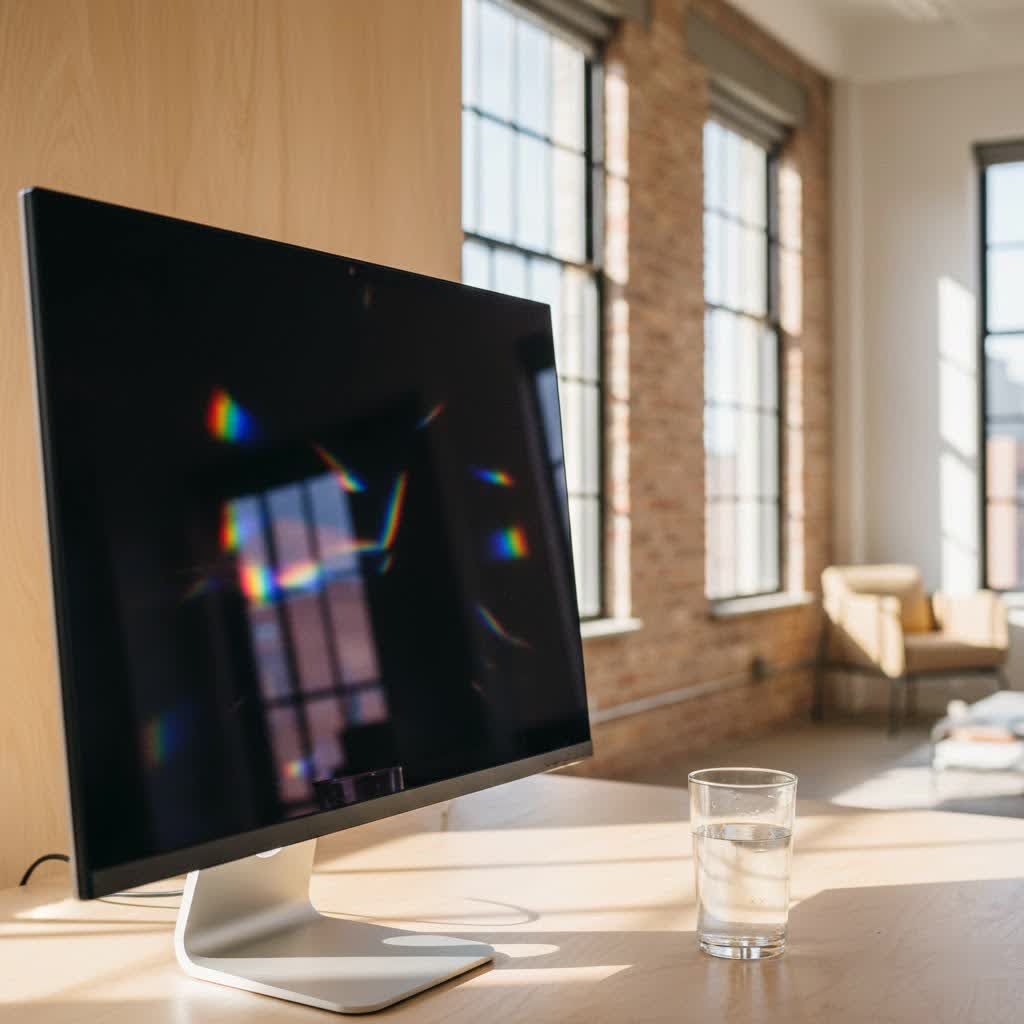
A great monitor isn’t just about displaying an image; it’s about enhancing your entire computing experience, boosting productivity, and immersing you deeper into your entertainment. Let’s dive into what truly makes a computer monitor shine.
Understanding the Core Technologies Behind Your Display
Before we talk about specifications, it’s essential to grasp the fundamental technologies that power your screen. These choices profoundly impact visual quality and performance.
LCD, LED, and OLED: What’s the Difference?
You’ve probably heard these terms tossed around, but what do they actually mean for your computer monitor?
-
LCD (Liquid Crystal Display): This has been the most popular display technology for decades. LCDs use a liquid crystal solution sandwiched between two glass plates. These crystals don’t emit their own light; instead, they rely on a separate backlight, typically fluorescent lamps (CCFLs) in older models, to illuminate the image. LCDs offer a good balance of performance and affordability.
-
LED (Light Emitting Diode): Often marketed as a distinct type, an LED monitor is actually a refined version of an LCD monitor. The key difference lies in its backlight: instead of CCFLs, it uses Light Emitting Diodes. This advancement allows for thinner designs, better energy efficiency, and often superior contrast ratios and brighter colors compared to older CCFL-backlit LCDs. For most everyday users, an LED-backlit LCD computer monitor is a fantastic all-rounder.
-
OLED (Organic Light Emitting Diode): This is the current pinnacle of display technology. Unlike LCDs, OLED pixels are self-emissive, meaning each pixel generates its own light. This allows for individual pixel dimming, resulting in “perfect blacks” (pixels can be completely turned off), infinite contrast ratios, and incredibly vibrant colors. OLED computer monitors offer superior color reproduction, faster response times, and wider viewing angles, making them a dream for graphic designers, content creators, and serious gamers, though they often come at a premium price. As Dr. Elara Vance, lead display technologist at Sbinj Labs, often says, “OLED truly transforms the visual landscape, delivering an unparalleled depth that traditional backlights simply cannot replicate.”
|
Our Picks for the Best Computer Monitor in 2026
As an Amazon Associate I earn from qualifying purchases.
|
||
| Num | Product | Action |
|---|---|---|
| 1 | Amazon Basics 24 Inch (23.8 inch viewable) Monitor, FHD 1080P, Max 100Hz, VESA Compatible, Built-in Speakers, Black |

|
| 2 | Philips New 27-inch Class Thin Full HD (1920 x 1080) 100Hz Monitor, VESA, HDMI x 1, VGA Port x1, Eye Care, 4 Year Advance Replacement Warranty, 271V8LB, Black |
|
| 3 | Samsung 27\\\" Essential S3 (S36GD) Series FHD 1800R Curved Computer Monitor, 100Hz, Game Mode, Advanced Eye Comfort, HDMI and D-sub Ports, LS27D366GANXZA, 2024 |
|
| 4 | Samsung 27\\\" S3 (S32GF) FHD High Resolution 120Hz Monitor with IPS Panel, Flicker Free, Eye Saver Mode, LS27F320GANXZA, 2025 |
|
| 5 | LG HDMI(2), DP, RS232C in/Out, RJ45 in,IR I |
|
| 6 | MAFNKOU Portable Monitor Touchscreen 14” 1920 * 1200P Gaming Display,Built-in Stand Speakers HDR IPS External Monitor for Laptop Portable,Travel Monitors for Laptop Mac PC Phone PS4/5 Xbox Switch |
|
| 7 | Samsung 32-Inch Flat Computer Monitor, 75Hz, Borderless Display, AMD FreeSync, Game Mode, Advanced Eye Care, HDMI and DisplayPort, LS32B304NWNXGO, 2024 |
|
| 8 | Samsung 24” (S40GD) Borderless Business Monitor with IPS Panel, 100Hz Refresh Rate, Eye Saver Mode, Ergonomic Design, Game Picture Mode, LS24D402GANXGO, 3 Yr Warranty |
|
| 9 | acer 27 Inch Monitor- KB272-27 Inch FHD IPS (1920 x 1080) Display, Up to 120Hz Refresh Rate, 99% sRGB, Tilt, Adaptive-Sync Support (FreeSync Compatible) 1ms (VRB), HDMI & VGA Ports |
|
| 10 | Philips 221V8LB 22 inch Class Thin Full HD (1920 x 1080) Monitor, 100Hz Refresh Rate, VESA, HDMI x1, VGA x1, LowBlue Mode, Adaptive Sync, 4 Year Advance Replacement Warranty |
|
Panel Types: IPS, VA, and TN Explained
Beyond the core display technology, the specific panel type used in your computer monitor also plays a critical role in its performance characteristics.
-
IPS (In-Plane Switching): Known for their stunning color accuracy and wide viewing angles, IPS panels are a favorite among photographers, video editors, and graphic designers. They ensure consistent color and image quality, even when viewed from the side. While traditionally slower than TN panels, modern IPS displays have made significant strides in refresh rates and response times, making them increasingly popular for gaming too.
-
VA (Vertical Alignment): VA panels strike a balance between IPS and TN. Their standout feature is a high native contrast ratio, which translates to deeper blacks and richer colors than IPS, making them excellent for consuming movies and other media. However, they can sometimes suffer from a phenomenon called “smearing” or “ghosting” with fast-moving objects, making them less ideal for competitive gaming unless specifically optimized.
-
TN (Twisted Nematic): If raw speed is your top priority and budget is a concern, TN panels traditionally offer the fastest response times and highest refresh rates. This makes them popular among competitive esports gamers where every millisecond counts. The trade-off is often poorer color reproduction and narrower viewing angles, meaning colors can shift when viewed off-center.
Key Specifications: Decoding the Numbers
Now that we understand the underlying tech, let’s break down the critical specifications you’ll encounter when shopping for a computer monitor.
Resolution: Clarity and Detail
Resolution refers to the number of pixels a display can show, typically expressed as width x height (e.g., 1920×1080). More pixels mean finer detail and sharper images.
- Full HD (FHD) / 1080p (1920×1080): Still a common resolution, especially for smaller monitors (21-24 inches) or budget-friendly options. It’s perfectly adequate for general computing, web browsing, and casual gaming.
- Quad HD (QHD) / 1440p (2560×1440): Often considered the “sweet spot” for many users, particularly on 27-inch monitors. It offers a significant boost in sharpness and screen real estate over 1080p without being as demanding on your graphics card as 4K.
- 4K Ultra HD (UHD) (3840×2160): Delivering four times the pixels of 1080p, 4K offers incredible detail and clarity, ideal for large screens (32 inches and up), content creation, and immersive gaming. However, running games at 4K often requires a powerful graphics card to maintain high frame rates.
Pixel density (PPI – pixels per inch) is also crucial. A 27-inch 4K monitor will look much sharper than a 32-inch 4K monitor because the pixels are packed more closely together on the smaller screen.
Refresh Rate (Hz): Smoothness in Motion
The refresh rate, measured in Hertz (Hz), indicates how many times per second your computer monitor updates the image on the screen. A higher refresh rate means smoother motion and a more fluid visual experience.
- 60Hz: Standard for most general-purpose monitors. Good enough for everyday tasks and casual gaming.
- 75Hz-120Hz: A noticeable improvement over 60Hz, providing a smoother feel, especially for lighter gaming.
- 144Hz-240Hz+: The gold standard for serious and competitive gamers. These higher refresh rates drastically reduce motion blur and input lag, giving players a competitive edge. “A higher refresh rate doesn’t just look better; it gives you a tangible advantage in fast-paced games by allowing you to react quicker to on-screen action,” notes Professor Kai Sharma, a renowned expert in digital display technology. Remember, your computer’s graphics card needs to be capable of producing enough frames per second (FPS) to take full advantage of a high refresh rate monitor.
Response Time (ms): Eliminating Ghosting
Response time, measured in milliseconds (ms), refers to how quickly a pixel can change from one color to another (typically gray-to-gray). A low response time is critical for minimizing motion blur, ghosting (a faint trail left by moving objects), and smearing in fast-paced content.
- 5ms or Higher: Generally acceptable for everyday use and casual content consumption.
- 1ms (GtG) or Lower: Essential for gaming, particularly competitive titles, where rapid pixel transitions prevent visual artifacts and ensure a crisp image during intense action. OLED monitors naturally excel in this area, often boasting near-instantaneous response times.
Contrast Ratio and HDR: Deeper Blacks, Brighter Whites
- Contrast Ratio: This spec defines the difference between the brightest white and the darkest black your computer monitor can display. A higher contrast ratio means more depth and realism in images. VA panels typically offer excellent native contrast.
- HDR (High Dynamic Range): HDR takes contrast and color a step further, allowing for a much wider range of brightness and a broader, more accurate color gamut. This results in more vivid, lifelike images with pronounced highlights and deeper shadows. When considering HDR, look for a DisplayHDR certification (e.g., DisplayHDR 600 or higher) for a truly impactful experience. OLED panels, with their ability to achieve true black, deliver exceptional HDR performance.
Connectivity: Plugging It All In
Modern computer monitors offer various ports to connect to your PC and other devices.
- HDMI (High-Definition Multimedia Interface): The most common connection, carrying both video and audio. Great for general use, consoles, and compatible with most GPUs.
- DisplayPort: Often preferred for PC gaming due to its ability to support higher resolutions and refresh rates than HDMI, making it ideal for 144Hz+ and 4K setups.
- USB-C / Thunderbolt: Increasingly popular, these versatile ports can carry video, audio, data, and even power a laptop with a single cable, reducing clutter. Many modern laptops leverage USB-C for display output.
- DVI / VGA: Older standards, mostly found on legacy equipment. Avoid if possible for new setups as they lack the bandwidth and features of HDMI or DisplayPort.
Choosing the Right Computer Monitor for Your Needs
The “best” computer monitor is subjective; it’s the one that best suits your specific activities.
For General Use and Productivity
If your daily tasks involve web browsing, email, word processing, and casual media consumption, focus on comfort, clarity, and reliability.
- Recommendation: A 23-27 inch IPS panel with 1080p or 1440p resolution. Look for good ergonomics, including height, tilt, and swivel adjustments, to reduce eye and neck strain. A 60-75Hz refresh rate is perfectly adequate. USB hubs on the monitor can also be a handy feature for connecting peripherals.
For Gaming Enthusiasts
Gamers have specific demands for speed, responsiveness, and immersion.
- Recommendation: Prioritize a high refresh rate (144Hz minimum, 240Hz+ for competitive play) and a low response time (1ms GtG). Adaptive Sync technologies like AMD FreeSync or NVIDIA G-SYNC are crucial to eliminate screen tearing and stuttering. Panel choice depends on your priorities: TN for absolute speed, IPS for a balance of speed and vibrant colors, or OLED for the ultimate visual experience. Consider curved or ultrawide monitors for enhanced immersion in certain game genres.
For Content Creators and Professionals
Accuracy, detail, and ample screen space are paramount for photographers, video editors, and graphic designers.
- Recommendation: Focus on IPS or OLED panels for their superior color accuracy and wide viewing angles. A 4K resolution on a 27-inch or larger display provides the necessary detail and workspace. Look for features like factory calibration, wide color gamut coverage (e.g., 99% sRGB, DCI-P3), and robust connectivity options, including USB-C for seamless workflow with laptops.
Optimizing Your Computer Monitor Experience
Once you have your ideal computer monitor, a few steps can help you get the most out of it.
- Ergonomics: Position your monitor about an arm’s length away, with the top of the screen at or slightly below eye level. Ensure proper lighting to minimize glare and eye strain.
- Calibration: For creative professionals, color calibration is vital to ensure accurate color representation across devices. Even for general users, adjusting brightness and contrast can significantly improve comfort.
- Driver Updates: Keep your graphics card drivers up to date to ensure optimal performance and compatibility with your monitor’s features.
Conclusion
Choosing a computer monitor might seem daunting, but by understanding the key technologies and specifications, you can confidently select a display that perfectly fits your lifestyle and needs. Whether you’re a hardcore gamer, a diligent professional, or simply looking for a better everyday viewing experience, there’s a monitor out there for you. At Sbinj.com, we believe that an informed choice is a powerful one, and we’re committed to being your trusted resource for all things computer monitor-related. Dive in, explore the possibilities, and elevate your digital world!
Frequently Asked Questions
What is the most important spec for a computer monitor?
The most important specification for a computer monitor highly depends on its intended use. For gamers, refresh rate and response time are critical. For content creators, color accuracy and resolution take precedence. For general use, a balance of resolution, panel type, and ergonomics is often key.
Is a curved computer monitor worth it?
Curved monitors can offer a more immersive experience, especially for ultrawide displays and gaming, by wrapping the image around your field of view. They can also reduce eye strain for some users. However, they are generally more expensive and might not be ideal for tasks requiring precise straight lines, like architectural design.
How often should I replace my computer monitor?
With proper care, a modern computer monitor can last anywhere from 5 to 10 years. However, technological advancements, especially in areas like OLED and higher refresh rates, might tempt users to upgrade sooner to take advantage of new features and improved performance.
Can I use a TV as a computer monitor?
Yes, you can use a TV as a computer monitor, especially for casual use or media consumption. Modern TVs often have HDMI inputs suitable for computers. However, TVs typically have higher input lag, slower response times, and often lower pixel density than dedicated monitors, making them less ideal for gaming or detailed productivity work.
What is Adaptive Sync (FreeSync/G-SYNC)?
Adaptive Sync technologies like AMD FreeSync and NVIDIA G-SYNC synchronize your monitor’s refresh rate with your graphics card’s frame rate. This eliminates frustrating visual artifacts like screen tearing and stuttering, providing a much smoother and more fluid gaming experience.
What size computer monitor is best?
The best computer monitor size depends on your desk space, viewing distance, and intended use. 24-inch to 27-inch monitors are popular for general use and gaming. Larger 32-inch+ displays or ultrawide monitors offer more screen real estate, ideal for multitasking, content creation, or immersive gaming.
