The 24-inch computer monitor is an ideal display choice for many users, balancing screen size, performance, and value. This size offers an excellent pixel density for 1080p (Full HD) resolution, providing crisp images without aggressive scaling, and is versatile for gaming, professional work, and everyday use. Its enduring appeal stems from its ergonomic benefits, fitting comfortably on most desks while being large enough for immersive experiences.
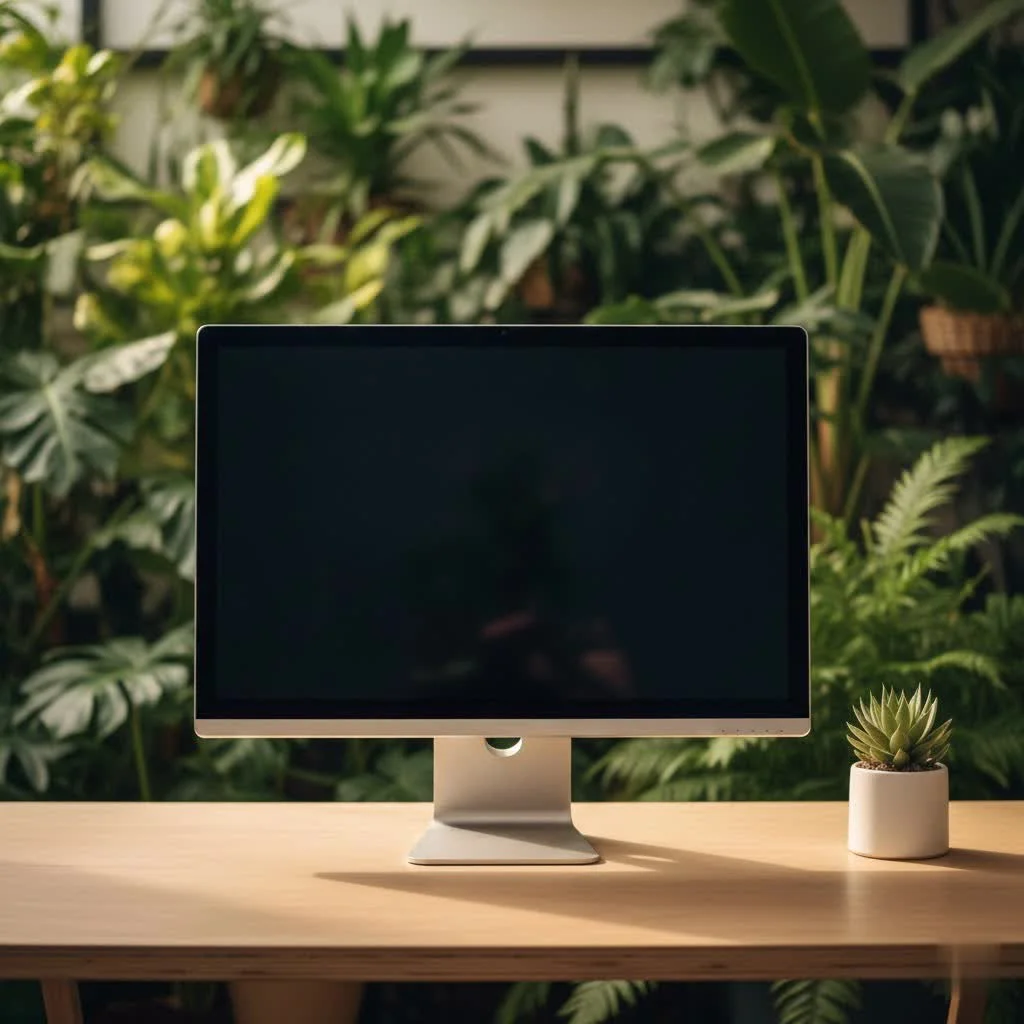
The Enduring Appeal of the 24-Inch Monitor
Why does the 24-inch monitor remain a staple in offices, gaming setups, and home environments worldwide? It’s a question of balance. This size strikes an excellent equilibrium between screen real estate and desk space, making it versatile for almost any application. A 24 computer monitor often offers an ideal pixel density for 1080p (Full HD) resolution, meaning you get crisp images without needing aggressive scaling, which can sometimes make text appear blurry or too small on larger, higher-resolution screens. It’s large enough to provide an immersive experience for movies and games, yet compact enough to fit comfortably on most desks, often allowing for convenient multi-monitor setups without overwhelming your workspace.
Furthermore, 24-inch monitors are typically more budget-friendly than their larger counterparts, offering premium features at a more accessible price point. This makes them an attractive option for students, entry-level professionals, or anyone looking to maximize their display investment. The ease of viewing the entire screen without excessive head movement also contributes to better ergonomics and reduced eye strain during long hours of use.
Key Specifications to Consider for Your 24-Inch Monitor
When you’re in the market for a 24 computer monitor, a few technical terms will pop up repeatedly. Understanding them is key to making an informed decision.
What Resolution is Best for a 24-Inch Monitor?
The resolution dictates the number of pixels on your screen, directly impacting image sharpness and detail.
- 1080p (Full HD): This is the most common and often recommended resolution for a 24-inch monitor. At this size, 1080p provides a healthy pixel density, delivering clear text and vibrant images without being too demanding on your graphics card. It’s excellent for general use, productivity, and gaming.
- 1440p (QHD): While less common for 24-inch displays, 1440p offers a significant bump in pixel density, resulting in incredibly sharp images. However, some users might find elements on the screen too small without applying display scaling, which can sometimes lead to minor inconsistencies in how applications are rendered. If you prioritize maximum sharpness and your eyes can handle the smaller text, a 24-inch 1440p monitor can be stunning.
|
Our Picks for the Best Computer Monitor in 2026
As an Amazon Associate I earn from qualifying purchases.
|
||
| Num | Product | Action |
|---|---|---|
| 1 | MAFNKOU Portable Monitor Touchscreen 14” 1920 * 1200P Gaming Display,Built-in Stand Speakers HDR IPS External Monitor for Laptop Portable,Travel Monitors for Laptop Mac PC Phone PS4/5 Xbox Switch |

|
| 2 | Samsung 27\\\" Essential S3 (S36GD) Series FHD 1800R Curved Computer Monitor, 100Hz, Game Mode, Advanced Eye Comfort, HDMI and D-sub Ports, LS27D366GANXZA, 2024 |
|
| 3 | Samsung 24” (S40GD) Borderless Business Monitor with IPS Panel, 100Hz Refresh Rate, Eye Saver Mode, Ergonomic Design, Game Picture Mode, LS24D402GANXGO, 3 Yr Warranty |
|
| 4 | Amazon Basics 24 Inch (23.8 inch viewable) Monitor, FHD 1080P, Max 100Hz, VESA Compatible, Built-in Speakers, Black |
|
| 5 | Philips New 27-inch Class Thin Full HD (1920 x 1080) 100Hz Monitor, VESA, HDMI x 1, VGA Port x1, Eye Care, 4 Year Advance Replacement Warranty, 271V8LB, Black |
|
| 6 | acer 27 Inch Monitor- KB272-27 Inch FHD IPS (1920 x 1080) Display, Up to 120Hz Refresh Rate, 99% sRGB, Tilt, Adaptive-Sync Support (FreeSync Compatible) 1ms (VRB), HDMI & VGA Ports |
|
| 7 | Samsung 32-Inch Flat Computer Monitor, 75Hz, Borderless Display, AMD FreeSync, Game Mode, Advanced Eye Care, HDMI and DisplayPort, LS32B304NWNXGO, 2024 |
|
| 8 | LG HDMI(2), DP, RS232C in/Out, RJ45 in,IR I |
|
| 9 | Samsung 27\\\" S3 (S32GF) FHD High Resolution 120Hz Monitor with IPS Panel, Flicker Free, Eye Saver Mode, LS27F320GANXZA, 2025 |
|
| 10 | Philips 221V8LB 22 inch Class Thin Full HD (1920 x 1080) Monitor, 100Hz Refresh Rate, VESA, HDMI x1, VGA x1, LowBlue Mode, Adaptive Sync, 4 Year Advance Replacement Warranty |
|
Which Panel Technology Should You Choose?
The panel type is the heart of your monitor and affects everything from color reproduction to viewing angles and response times.
- IPS (In-Plane Switching): Known for its exceptional color accuracy and wide viewing angles. This makes an IPS 24 computer monitor perfect for graphic designers, video editors, and anyone who values visual fidelity. While traditionally slower, modern IPS panels have greatly improved response times, making them suitable for casual to serious gaming.
- VA (Vertical Alignment): VA panels offer superior contrast ratios and deeper blacks compared to IPS, making them excellent for media consumption and creating a more immersive experience in dimly lit rooms. Viewing angles are generally better than TN but not quite as wide as IPS. Response times are usually moderate.
- TN (Twisted Nematic): TN panels boast the fastest response times, making them the go-to choice for competitive gamers where every millisecond counts. The trade-off is often poorer color accuracy and narrower viewing angles, meaning colors can shift if you’re not looking at the screen head-on.
Why Do Refresh Rate and Response Time Matter?
These two specs are crucial for the fluidity and responsiveness of your display.
- Refresh Rate (Hz): This is how many times per second the monitor updates its image. A standard 24 computer monitor often features a 60Hz or 75Hz refresh rate, which is perfectly fine for productivity and general use. For gamers, higher refresh rates (120Hz, 144Hz, 165Hz, or even 240Hz) provide a significantly smoother and more responsive experience, reducing motion blur.
- Response Time (ms): This measures how quickly pixels can change from one color to another. Lower numbers are better, especially for fast-paced content like gaming. A 1ms GtG (Grey-to-Grey) response time is considered excellent for competitive gaming, while 4-5ms GtG is typically acceptable for most other uses.
What Connectivity Options Are Important?
Modern 24-inch monitors offer various ports to connect to your devices.
- HDMI (High-Definition Multimedia Interface): The most common standard, supporting both video and audio. Multiple HDMI ports are always a plus.
- DisplayPort (DP): Often preferred for gaming due to its higher bandwidth, supporting higher refresh rates and resolutions.
- USB-C (Thunderbolt): A versatile port that can handle video, data, and even power delivery through a single cable, ideal for laptops.
- USB Hub: Some monitors include built-in USB ports, allowing you to connect peripherals directly to your display, reducing cable clutter.
What About Ergonomics and Eye Care?
Investing in a monitor with good ergonomic adjustments can save your neck and back in the long run. Look for features like:
- Height Adjustment: Essential for aligning the top of your screen with your eye level.
- Tilt: Allows you to angle the screen up or down.
- Swivel: Lets you rotate the screen horizontally.
- Pivot: Enables you to rotate the screen 90 degrees for portrait mode, which is fantastic for coding or document editing.
- VESA Mount Compatibility: Allows you to mount your 24 computer monitor on an arm or wall mount for ultimate flexibility.
Additionally, many modern monitors include Flicker-Free technology and Low Blue Light modes to reduce eye strain, especially during extended use.
Finding the Perfect 24-Inch Monitor for Your Needs
The best 24 computer monitor for you depends heavily on your primary use case.
For the Gamer: Speed and Immersion
- Key Features: High refresh rate (144Hz+), low response time (1ms GtG), FreeSync or G-Sync compatibility to eliminate screen tearing, fast IPS or TN panel.
- Recommendation: Prioritize refresh rate and response time over ultimate color accuracy for competitive titles. A fast IPS panel offers a great balance.
For the Productivity Powerhouse: Clarity and Comfort
- Key Features: IPS panel for wide viewing angles and crisp text, 1080p or 1440p resolution (if comfortable with scaling), extensive ergonomic adjustments, eye care features.
- Recommendation: An IPS 24 computer monitor with excellent ergonomics will keep you productive and comfortable through long workdays.
For the Creative Professional: Color Accuracy is King
- Key Features: IPS panel with excellent color gamut coverage (e.g., 100% sRGB, high Adobe RGB/DCI-P3), factory calibration, uniform backlighting, high contrast.
- Recommendation: Look for an IPS 24 computer monitor specifically marketed for creative work, often with professional certifications.
For Everyday Use and Media Consumption: Visual Enjoyment
- Key Features: VA or IPS panel for good contrast and viewing angles, 1080p resolution, built-in speakers (if desired), a sleek design.
- Recommendation: A VA panel can offer a fantastic movie-watching experience with its deep blacks, while an IPS panel provides vibrant all-around visuals.
Setting Up Your 24-Inch Monitor for Optimal Performance
Once you’ve chosen your ideal 24 computer monitor, proper setup can enhance your experience.
- Placement: Position the monitor directly in front of you, about an arm’s length away. The top of the screen should be at or slightly below eye level.
- Cabling: Use the highest quality cables for your connection (e.g., DisplayPort for gaming, HDMI for general use). Ensure cables are routed neatly.
- Drivers: Install the latest monitor drivers from the manufacturer’s website. This ensures optimal compatibility and unlocks all features.
- Calibration: Consider basic calibration. Most operating systems allow you to adjust brightness, contrast, and color temperature. For serious creative work, hardware calibrators are recommended.
- Refresh Rate: For gaming monitors, ensure your operating system settings are set to the maximum refresh rate your monitor supports (e.g., 144Hz).
The Longevity of Your 24-Inch Monitor: Maintenance Tips
A little care goes a long way in ensuring your 24 computer monitor serves you well for years.
- Cleaning: Use a soft, microfiber cloth specifically designed for electronics to gently wipe the screen. For stubborn smudges, use a dedicated monitor cleaning solution (never use harsh chemicals like window cleaner).
- Ventilation: Ensure there’s adequate airflow around your monitor to prevent overheating, especially if it’s placed in an enclosed space.
- Power Down: Turn off your monitor when not in use for extended periods to save energy and prolong its lifespan.
- Avoid Direct Sunlight: Prolonged exposure to direct sunlight can degrade the screen’s quality over time.
Expert Insight
“The 24-inch monitor isn’t just a size; it’s a statement of pragmatic excellence,” says Dr. Evelyn Reed, Lead Display Technologist at Sbinj Labs. “It perfectly balances screen real estate with pixel density, delivering incredible clarity at 1080p without overstretching your budget or your desk space. It’s truly the versatile workhorse of the display world.”
Frequently Asked Questions (FAQs)
Is a 24-inch monitor big enough for gaming?
Absolutely! Many professional esports players prefer 24-inch monitors for competitive gaming because it allows them to see the entire screen at a glance without moving their head, providing a competitive edge.
Can a 24 computer monitor support 4K resolution?
While technically possible, 4K resolution on a 24-inch monitor results in extremely high pixel density. This makes text and icons very tiny without significant scaling, which can be taxing on your system and may not always render perfectly. 1080p and 1440p are generally much better suited for this size.
What is the ideal viewing distance for a 24-inch monitor?
For a 24-inch monitor, an arm’s length (approximately 20-30 inches or 50-75 cm) is generally considered an ideal viewing distance to minimize eye strain and allow you to see the entire screen comfortably.
Are curved 24-inch monitors worth it?
Curved monitors are designed to enhance immersion, especially in gaming or media. While more noticeable on larger screens, a subtle curve on a 24 computer monitor can still offer a slightly more immersive feel for some users, particularly those sitting close to the screen.
How do I know if my computer can handle a high refresh rate 24-inch monitor?
Your graphics card (GPU) and the games you play are the primary factors. To utilize a 144Hz monitor, your GPU needs to be capable of outputting 144 frames per second (FPS) in your desired games at the monitor’s resolution. Check your GPU’s specifications and game benchmarks.
Can I use a 24-inch monitor for graphic design?
Yes, a 24-inch monitor with an IPS panel and good color accuracy is an excellent choice for graphic design, especially for those working in sRGB. If you’re dealing with very large canvases or multi-tasking extensively, a larger screen might eventually be beneficial, but 24-inch is a strong starting point.
Conclusion
The 24 computer monitor remains a formidable choice in today’s diverse display landscape. Its combination of affordability, ideal pixel density for common resolutions, and versatility across various tasks makes it a perennial favorite. By understanding the key specifications and aligning them with your personal needs, you can confidently select a 24-inch display that not only meets but exceeds your expectations. Whether you’re optimizing for competitive gaming, enhancing your workday, or simply enjoying your favorite content, the right 24 computer monitor is waiting to transform your digital experience. Choose wisely, set it up well, and enjoy the crisp, vibrant world it brings to your desk.
Frequently Asked Questions
- Is a 24-inch monitor big enough for gaming?
- Yes, a 24-inch monitor is often preferred by professional esports players for competitive gaming. This size allows them to view the entire screen at a glance without significant head movement, providing a crucial competitive advantage in fast-paced games.
- Can a 24-inch computer monitor support 4K resolution?
- While technically possible, 4K resolution on a 24-inch monitor results in extremely high pixel density, making text and icons very small. This often requires significant display scaling, which can be taxing on your system and may not always render perfectly. 1080p and 1440p resolutions are generally much better suited for this screen size.
- What is the ideal viewing distance for a 24-inch monitor?
- For a 24-inch monitor, an arm's length, approximately 20-30 inches (50-75 cm), is generally considered the ideal viewing distance. This distance helps minimize eye strain and allows users to comfortably see the entire screen without excessive head or eye movement.
- Are curved 24-inch monitors worth it for immersion?
- Curved monitors are designed to enhance immersion, particularly in gaming and media consumption. While the effect is more pronounced on larger screens, a subtle curve on a 24-inch computer monitor can still offer a slightly more immersive experience for users who sit close to the display, wrapping the image around their field of view.
- How do I know if my computer can handle a high refresh rate 24-inch monitor?
- Your graphics card (GPU) is the primary factor in determining if your computer can handle a high refresh rate monitor. To fully utilize a 144Hz monitor, for example, your GPU needs to be capable of consistently outputting 144 frames per second (FPS) in your desired games at the monitor's native resolution. Check your GPU's specifications and review game benchmarks for performance estimates.
- Can a 24-inch monitor be effectively used for graphic design tasks?
- Yes, a 24-inch monitor equipped with an IPS panel and strong color accuracy is an excellent choice for graphic design, especially for work within the sRGB color space. While larger screens might offer more canvas space for extensive multitasking, a 24-inch display provides a solid starting point for precise visual work.
Set Up Your 24-Inch Monitor for Optimal Performance
Properly setting up your 24-inch computer monitor can significantly enhance your viewing experience and comfort.
- Position the Monitor Correctly
Place your monitor directly in front of you, roughly an arm's length away (20-30 inches). Adjust the height so the top of the screen is at or slightly below your eye level to maintain good posture and reduce neck strain. - Connect with Quality Cables
Use the highest quality cables appropriate for your connection type, such as DisplayPort for gaming to support higher refresh rates, or HDMI for general use. Ensure all cables are securely connected and neatly routed to avoid clutter. - Install Latest Drivers
Visit the monitor manufacturer's website to download and install the latest drivers. This step ensures optimal compatibility with your operating system and unlocks all of your monitor's features and performance capabilities. - Perform Basic Calibration
Utilize your operating system's built-in display settings to adjust brightness, contrast, and color temperature to your preference. For professional creative work, consider investing in a hardware calibrator for more precise color accuracy. - Set Maximum Refresh Rate (for Gaming)
If you have a high refresh rate gaming monitor, ensure your operating system settings are configured to use its maximum refresh rate (e.g., 144Hz, 240Hz). This will provide the smoothest possible visual experience in games and other fast-paced content.

This guide helped me confirm my choice for a new 24-inch monitor for professional work. The ergonomic benefits mentioned are so true; it fits comfortably on my desk without overwhelming it. I can easily manage spreadsheets and documents side-by-side. It’s a fantastic value for the performance you get.
Just upgraded to a new 24 computer monitor and I’m really happy with it. The balance between screen size and desk space is exactly what I needed for my home office setup. It’s great for everyday use and even some light gaming. My old monitor felt too small, but this one is just right.
I’ve been using a 24-inch monitor for years and it’s truly the sweet spot. The article was spot on about the 1080p resolution looking super crisp at this size. I mostly use mine for graphic design work and it’s perfect for fitting multiple windows without feeling cramped. Definitely recommend this size for anyone looking for a versatile display.
I got a 24-inch monitor specifically for gaming, and while it’s good, I do wish I’d gone a little bigger. The pixel density for 1080p is fine, but for really immersive experiences, I feel like a 27-inch might have been better. It fits my desk perfectly though, so that’s a plus.