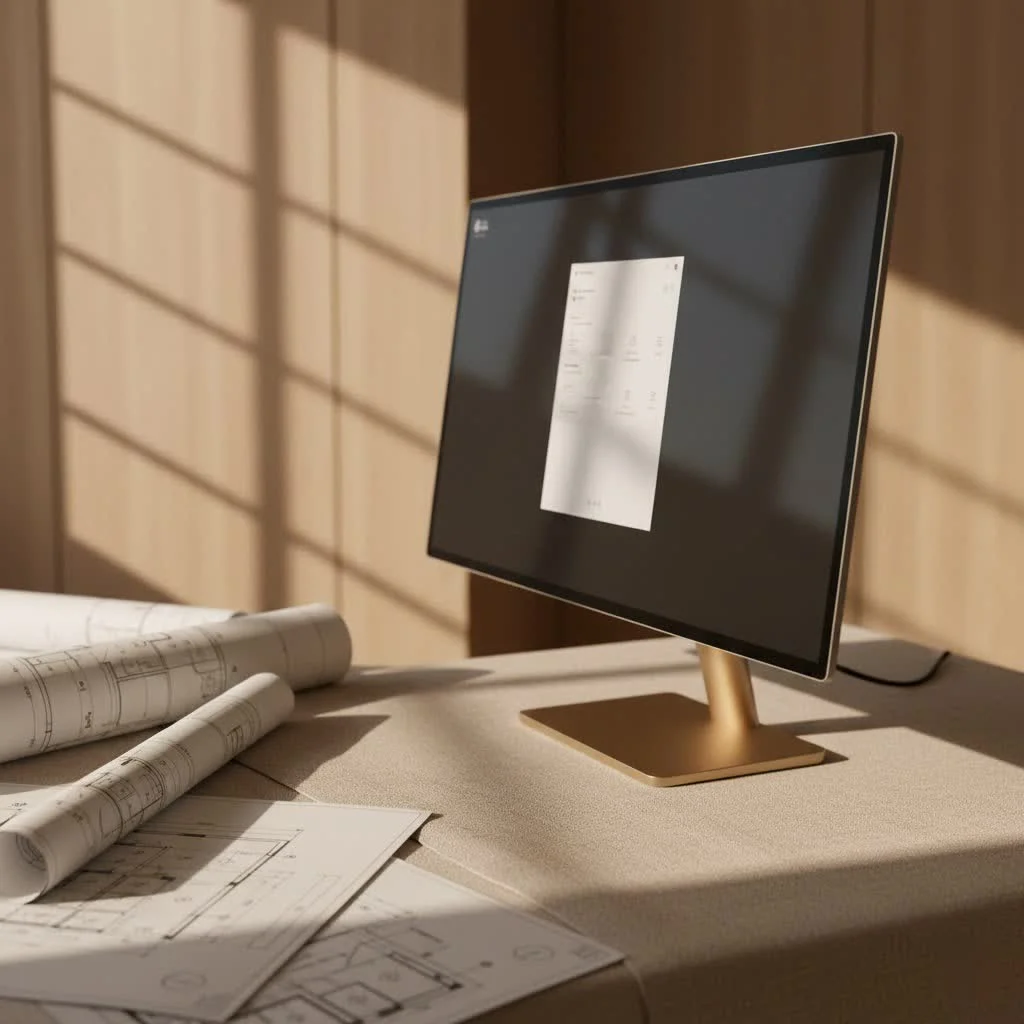
A vertical computer monitor is a display rotated 90 degrees from its standard horizontal orientation, offering significantly increased vertical viewing area for enhanced productivity. This setup is particularly beneficial for tasks involving long-form content like coding, document review, and web browsing, as it reduces constant scrolling and improves ergonomic comfort. Many modern monitors can be physically pivoted or mounted vertically, transforming your workspace and how you interact with digital content.
What Exactly is a Vertical Computer Monitor?
At its core, a vertical computer monitor is simply a display that has been rotated 90 degrees from its standard horizontal (landscape) orientation. Instead of being wider than it is tall, it stands upright, much like a book or a sheet of paper. This seemingly minor shift unlocks a world of benefits, primarily by offering a significantly increased vertical viewing area. While most modern monitors can be physically pivoted or mounted in a portrait orientation, it’s the thoughtful integration into your workflow that truly makes a vertical computer monitor shine.
Why Go Vertical? The Compelling Benefits
Adopting a vertical monitor isn’t just a trend; it’s a strategic move for enhancing productivity and comfort. Here’s why more and more professionals are making the switch:
Enhanced Productivity
Imagine seeing more lines of code, an entire document page, or a lengthy web article without constantly reaching for your scroll wheel. That’s the primary magic of a vertical computer monitor. For tasks involving long-form content, this setup drastically cuts down on scrolling, allowing you to maintain context and focus with ease.
- Coding & Programming: Developers often rave about vertical monitors. They can display significantly more lines of code at once, making it easier to review, debug, and understand large blocks of programming. This direct visibility reduces mental overhead and speeds up the development process.
- Document Review & Writing: Whether you’re drafting reports, editing manuscripts, or reviewing legal documents, the portrait orientation mimics the natural flow of a printed page. This makes reading more comfortable and efficient, allowing for quicker content digestion.
- Web Browsing & Research: Many websites are designed with a vertical scrolling experience in mind. A vertical monitor lets you see more of a webpage without scrolling, making research and content consumption smoother.
- Spreadsheets & Timelines: For data analysts or project managers, vertical displays can reveal more rows of a spreadsheet or a longer section of a project timeline, offering a better overview and reducing horizontal navigation.
|
Our Picks for the Best Computer Monitor in 2026
As an Amazon Associate I earn from qualifying purchases.
|
||
| Num | Product | Action |
|---|---|---|
| 1 | Philips New 27-inch Class Thin Full HD (1920 x 1080) 100Hz Monitor, VESA, HDMI x 1, VGA Port x1, Eye Care, 4 Year Advance Replacement Warranty, 271V8LB, Black |

|
| 2 | LG HDMI(2), DP, RS232C in/Out, RJ45 in,IR I |
|
| 3 | Samsung 27\\\" Essential S3 (S36GD) Series FHD 1800R Curved Computer Monitor, 100Hz, Game Mode, Advanced Eye Comfort, HDMI and D-sub Ports, LS27D366GANXZA, 2024 |
|
| 4 | acer 27 Inch Monitor- KB272-27 Inch FHD IPS (1920 x 1080) Display, Up to 120Hz Refresh Rate, 99% sRGB, Tilt, Adaptive-Sync Support (FreeSync Compatible) 1ms (VRB), HDMI & VGA Ports |
|
| 5 | Samsung 24” (S40GD) Borderless Business Monitor with IPS Panel, 100Hz Refresh Rate, Eye Saver Mode, Ergonomic Design, Game Picture Mode, LS24D402GANXGO, 3 Yr Warranty |
|
| 6 | Amazon Basics 24 Inch (23.8 inch viewable) Monitor, FHD 1080P, Max 100Hz, VESA Compatible, Built-in Speakers, Black |
|
| 7 | Samsung 32-Inch Flat Computer Monitor, 75Hz, Borderless Display, AMD FreeSync, Game Mode, Advanced Eye Care, HDMI and DisplayPort, LS32B304NWNXGO, 2024 |
|
| 8 | Samsung 27\\\" S3 (S32GF) FHD High Resolution 120Hz Monitor with IPS Panel, Flicker Free, Eye Saver Mode, LS27F320GANXZA, 2025 |
|
| 9 | MAFNKOU Portable Monitor Touchscreen 14” 1920 * 1200P Gaming Display,Built-in Stand Speakers HDR IPS External Monitor for Laptop Portable,Travel Monitors for Laptop Mac PC Phone PS4/5 Xbox Switch |
|
| 10 | Philips 221V8LB 22 inch Class Thin Full HD (1920 x 1080) Monitor, 100Hz Refresh Rate, VESA, HDMI x1, VGA x1, LowBlue Mode, Adaptive Sync, 4 Year Advance Replacement Warranty |
|
Superior Ergonomics
Beyond productivity, a vertical monitor can be a significant boon for your physical well-being. Prolonged computer use can lead to neck strain and poor posture, but a properly set up vertical screen can help mitigate these issues.
- Reduced Neck Strain: By positioning your vertical monitor so the top third of the screen is at eye level, you minimize the need to constantly look down or tilt your head. This promotes a more neutral head and neck posture, reducing discomfort over long work sessions. As our expert, Dr. Elara Vance, a specialist in ergonomic workspace design, often says, “Aligning your display with your natural line of sight is paramount for long-term spinal health. A vertical monitor, when correctly positioned, can be a game-changer for reducing chronic neck and shoulder tension.”
- Improved Eye Comfort: With content flowing vertically, your eyes tend to move less horizontally, which can reduce eye fatigue. Many vertical monitors also integrate eye-care technologies like low blue light filters and flicker-free backlighting, further enhancing visual comfort.
Optimized Workspace
Desk space is precious, and vertical monitors help you make the most of it, especially in multi-monitor setups.
- Space-Saving Design: A vertical display naturally occupies less horizontal desk space compared to a landscape monitor of the same size. This is incredibly useful for smaller desks or for creating a more expansive multi-monitor configuration without sacrificing room for other essentials.
- Seamless Multi-Monitor Setups: Many users pair a primary horizontal monitor with one or two vertical side monitors. This hybrid setup allows you to dedicate the vertical screen to specific tasks like chat applications, email, or a code editor, while your main display handles broader applications like video editing or graphic design.
Specialized Use Cases
From creative studios to live streaming setups, vertical monitors find their niche in various specialized applications.
- Creative Tasks: For graphic designers, editing long canvas or reviewing mood boards can be more intuitive on a vertical screen. Video editors can benefit from seeing more of their timeline without excessive zooming.
- Chat Applications & Social Feeds: Having a dedicated vertical monitor for communication apps like Slack, Discord, or Twitter allows you to keep an eye on real-time feeds without interrupting your main workflow.
Choosing Your Perfect Vertical Monitor: What to Look For
Selecting the right vertical computer monitor involves considering a few key technical specifications and features:
Rotation Capability
The most fundamental requirement for a vertical setup is a monitor that can physically pivot.
- Built-in Pivot Stands: Many professional-grade monitors come with an ergonomic stand that allows for easy 90-degree rotation. This is the most straightforward option.
- VESA Mount Compatibility: If your current monitor lacks a pivot feature, ensure it’s VESA compliant. This allows you to attach it to an aftermarket monitor arm or stand, which provides the necessary rotation and often superior ergonomic adjustments.
Ideal Size and Resolution
Size and resolution go hand-in-hand to determine clarity and screen real estate.
- “Sweet Spot” Size: For vertical use, monitors between 24 and 28 inches are often considered the sweet spot. Larger monitors (27 inches and above) can offer expansive viewing but might require more head movement, potentially causing strain if not positioned correctly.
- Resolution & Pixel Density: A higher resolution (e.g., 1920×1080 for 24-inch, 2560×1440 for 27-inch, or 4K for larger screens) is crucial for sharp text and clear images in portrait mode. High pixel density ensures that text remains crisp, reducing eye strain.
Panel Technology
The type of display panel affects color accuracy, viewing angles, and response time.
- IPS (In-Plane Switching): Generally recommended for vertical monitors due to their excellent color reproduction and wide viewing angles. This means colors and contrast remain consistent even when viewed from slightly off-center.
- VA (Vertical Alignment): Offers good contrast ratios, but viewing angles might be slightly less forgiving than IPS.
Connectivity Options
Modern workflows demand versatile connectivity.
- DisplayPort (DP) & HDMI: These are standard and widely supported video inputs.
- USB-C with Power Delivery: A highly desirable feature, especially for laptop users. A single USB-C cable can transmit video, data, and even power your laptop, decluttering your desk. Some monitors even offer USB-C hubs with Ethernet (RJ45) for a true single-cable docking solution.
Ergonomic Stand Features
Beyond rotation, look for stands that offer comprehensive adjustability.
- Height Adjustment: Essential for aligning the screen with your eye level.
- Tilt: Allows you to angle the screen slightly to reduce reflections and optimize viewing.
- Swivel: Lets you rotate the screen horizontally without moving the base.
Eye Care Technologies
Features like low blue light modes and flicker-free backlighting are vital for reducing eye strain during extended use.
Setting Up Your Vertical Display: A Step-by-Step Guide
Getting your vertical computer monitor up and running is a straightforward process, involving both hardware and software adjustments.
Physical Setup
- Check Compatibility: First, ensure your monitor has a built-in pivot function in its stand or is VESA compatible. If not, invest in a VESA-compatible monitor arm.
- Mount or Rotate: If your monitor’s stand supports rotation, gently pivot it 90 degrees clockwise or counterclockwise until it clicks into place. If using a monitor arm, attach the monitor securely and then adjust its orientation.
- Connect Cables: Plug in the power cable and the appropriate video cable (HDMI, DisplayPort, or USB-C) from your computer to the monitor.
- Ergonomic Positioning: Adjust the monitor’s height so that the top third of the screen is roughly at your eye level when you’re sitting comfortably. The screen should be about an arm’s length away. A slight tilt (5-10 degrees) can also improve viewing comfort and reduce glare.
Software Configuration
Once the physical setup is complete, you’ll need to tell your operating system to recognize the new orientation.
- For Windows (10/11):
- Right-click anywhere on your desktop and select “Display settings.”
- Identify your vertical monitor in the display layout diagram.
- Scroll down to the “Scale and layout” section.
- Under “Display orientation,” choose “Portrait” or “Portrait (flipped)” (depending on which way you rotated it).
- Click “Apply” and then “Keep changes.”
- If text appears too small or large, adjust the “Scale” setting (e.g., 125% or 150%).
- For macOS:
- Go to the Apple menu > “System Settings” > “Displays.”
- Select your vertical monitor.
- Hold down the “Option” key, which will reveal hidden rotation settings.
- Under “Rotation,” choose “90°” or “270°” (depending on your physical rotation).
- Click “Confirm.”
Navigating the Downsides: What to Consider
While vertical computer monitors offer many advantages, they aren’t a one-size-fits-all solution.
- Limitations for Certain Tasks: Vertical monitors are generally not ideal for tasks that require a wide field of view, such as intense gaming, video editing (where timelines are horizontal), or cinematic movie watching. Most content is still designed for landscape displays, which might result in black bars or a less optimized viewing experience.
- Initial Adjustment Period: The visual shift from landscape to portrait can feel a bit “odd” initially. It takes some time to get used to the new orientation and how to best arrange your windows.
- Potential Glare and Viewing Angle Issues: Depending on your monitor’s panel type and room lighting, a vertical screen might be more susceptible to glare or exhibit minor viewing angle inconsistencies if not positioned carefully.
Conclusion
Embracing a vertical computer monitor can fundamentally reshape your digital experience, offering tangible benefits in productivity, ergonomics, and workspace efficiency. Whether you’re a coder drowning in lines of text, a writer crafting lengthy documents, or simply seeking a more comfortable way to browse the web, the portrait orientation provides a refreshing perspective. By choosing the right monitor and setting it up thoughtfully, you can unlock a new level of focus and comfort.
We at Sbinj.com encourage you to experiment with this setup. Give it a try, tailor it to your needs, and you might just discover your most productive and comfortable workspace yet. Share your vertical monitor setups and tips with us – we’d love to hear how it transforms your workflow!
Frequently Asked Questions (FAQ)
Q: Is a vertical monitor good for coding?
A: Yes, a vertical monitor is exceptionally good for coding. It allows programmers to see more lines of code at once, reducing the need for constant scrolling and enhancing readability and productivity during long coding sessions.
Q: Can any monitor be used vertically?
A: Not all monitors are designed with a built-in pivot function in their stand. However, most modern monitors are VESA compatible, meaning you can use an aftermarket monitor arm or stand to rotate them into a vertical orientation.
Q: What size monitor is best for a vertical setup?
A: Monitors between 24 and 28 inches are generally considered the “sweet spot” for vertical setups, offering a good balance of screen real estate and ergonomic comfort. Larger monitors might require more head movement, potentially leading to neck strain if not positioned correctly.
Q: How do I rotate my monitor to portrait mode in Windows?
A: To rotate your monitor in Windows, right-click on your desktop, select “Display settings,” choose the desired monitor, and under “Display orientation,” select “Portrait” or “Portrait (flipped).”
Q: Are there any downsides to using a vertical monitor?
A: While highly beneficial for certain tasks, vertical monitors are not ideal for content designed for wide screens, such as gaming or video editing. Some users also report an initial adjustment period and potential glare issues depending on lighting.
Q: Does a vertical monitor help with neck strain?
A: Yes, a properly positioned vertical monitor can significantly help reduce neck strain. By aligning the screen’s top third with your eye level, it promotes a more natural head and neck posture, minimizing the need to look down.
Q: What is the LG DualUp monitor and how does it relate to vertical setups?
A: The LG DualUp monitor (28MQ780-B) is a unique display with an 16:18 aspect ratio (2560×2880 resolution). When used vertically, it essentially provides the screen real estate of two stacked 21.5-inch monitors without a bezel in between, making it exceptionally good for productivity tasks like coding and document review.

I’ve been using a vertical monitor for document review for about a month now, and it’s fantastic for legal briefs. The ergonomic comfort is a huge plus, as I’m not craning my neck as much. My only minor gripe is that some older software doesn’t scale perfectly in portrait mode, but it’s a small trade-off for the increased productivity.
I finally took the plunge and got a vertical monitor for my coding setup, and wow, what a difference! Being able to see so much more of my code without constant scrolling is a game-changer. My eyes feel less strained at the end of the day, too. Definitely recommend this for any developer.
I tried a vertical setup for web browsing, hoping to reduce scrolling. While it does help with long articles, I found that some websites just aren’t optimized for the portrait orientation, leading to a lot of wasted space on the sides. It’s good for specific tasks, but not as universally amazing as I hoped for general use. Still, it’s a neat idea.
As a content writer, I spend hours reviewing long-form content, and a vertical monitor has completely transformed my workflow. It’s like having a digital scroll of paper right in front of me. The ability to pivot my existing monitor was super easy to set up, and I can’t imagine going back to just horizontal now.